Step 1: Add your Domain to the list
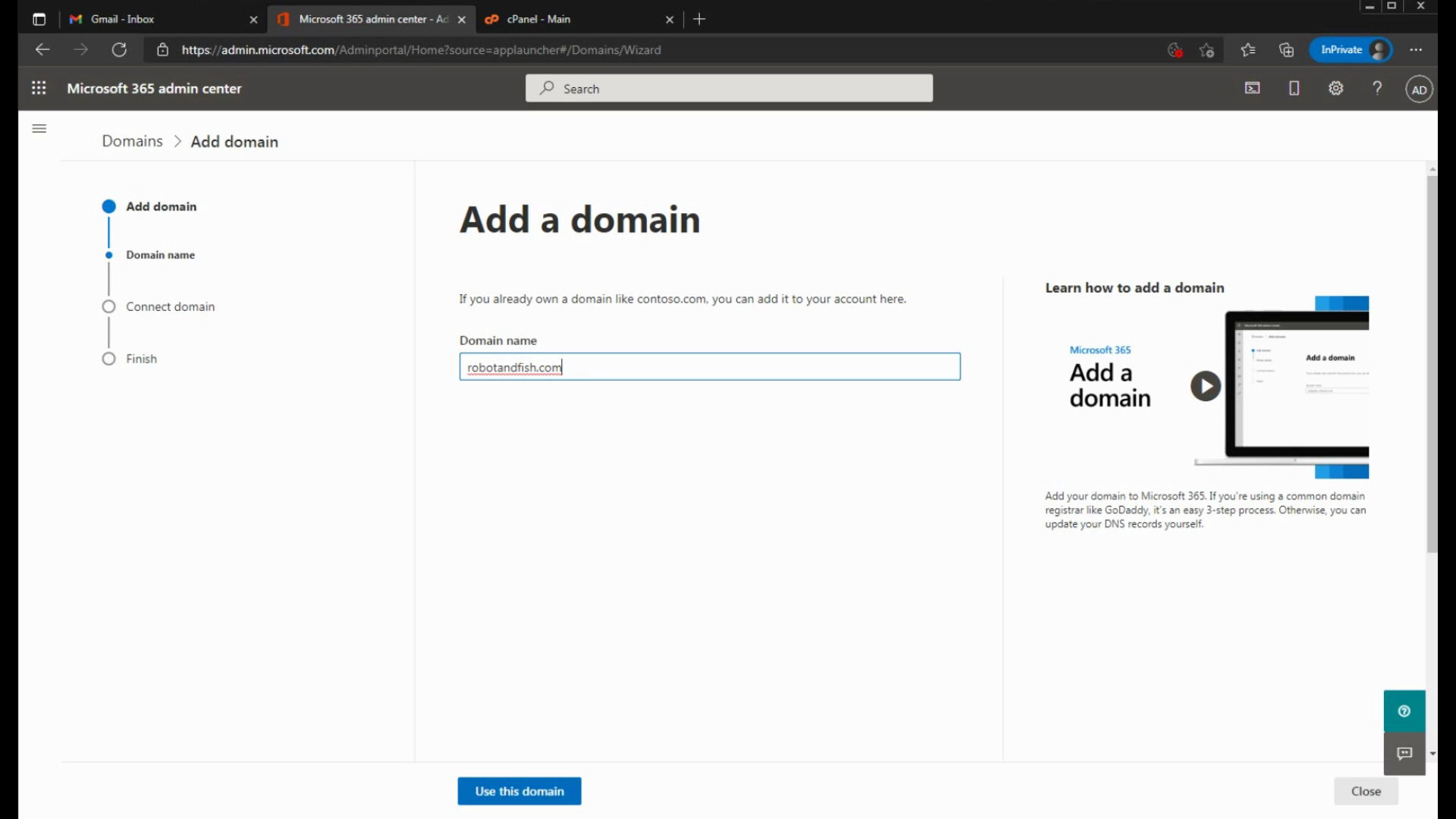
Go to your Domain settings in the Admin Center then add your domain.
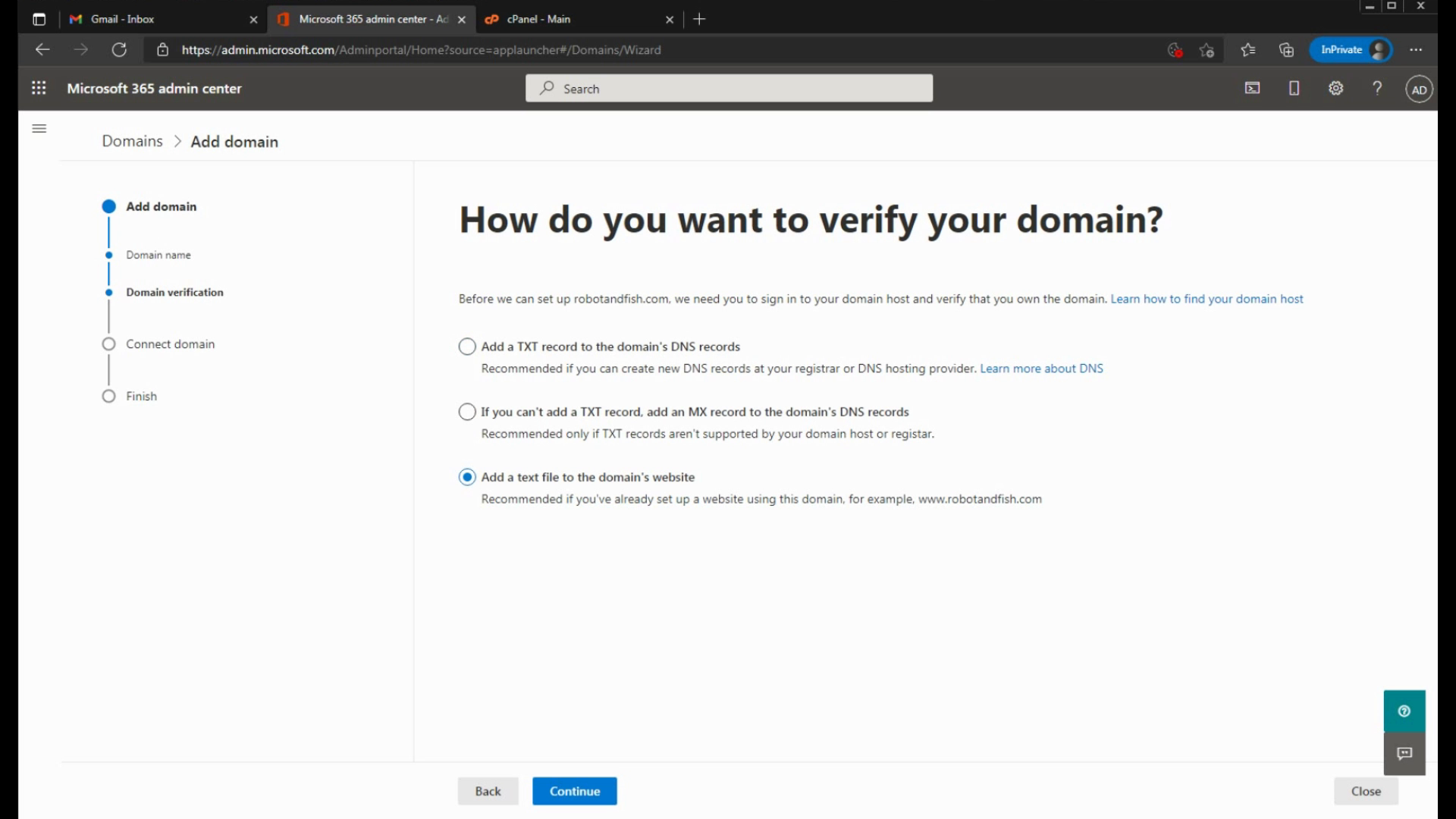
Then Microsoft will ask you to verify your domain. For this we choose the Text File verification.
Step 2: Adding the TXT file
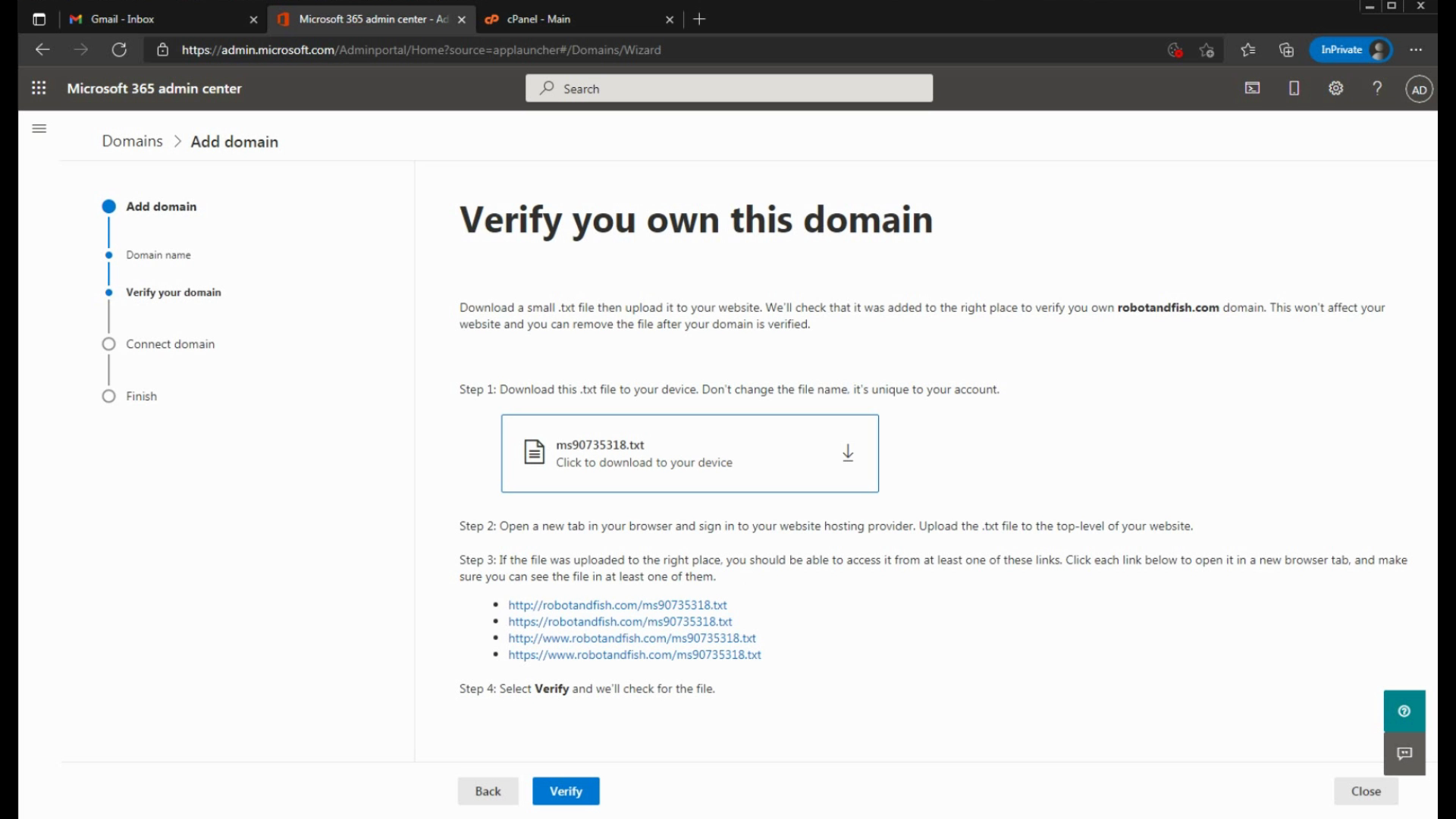
Download the .TXT file and then make sure to save it and finally upload it to your website's root.
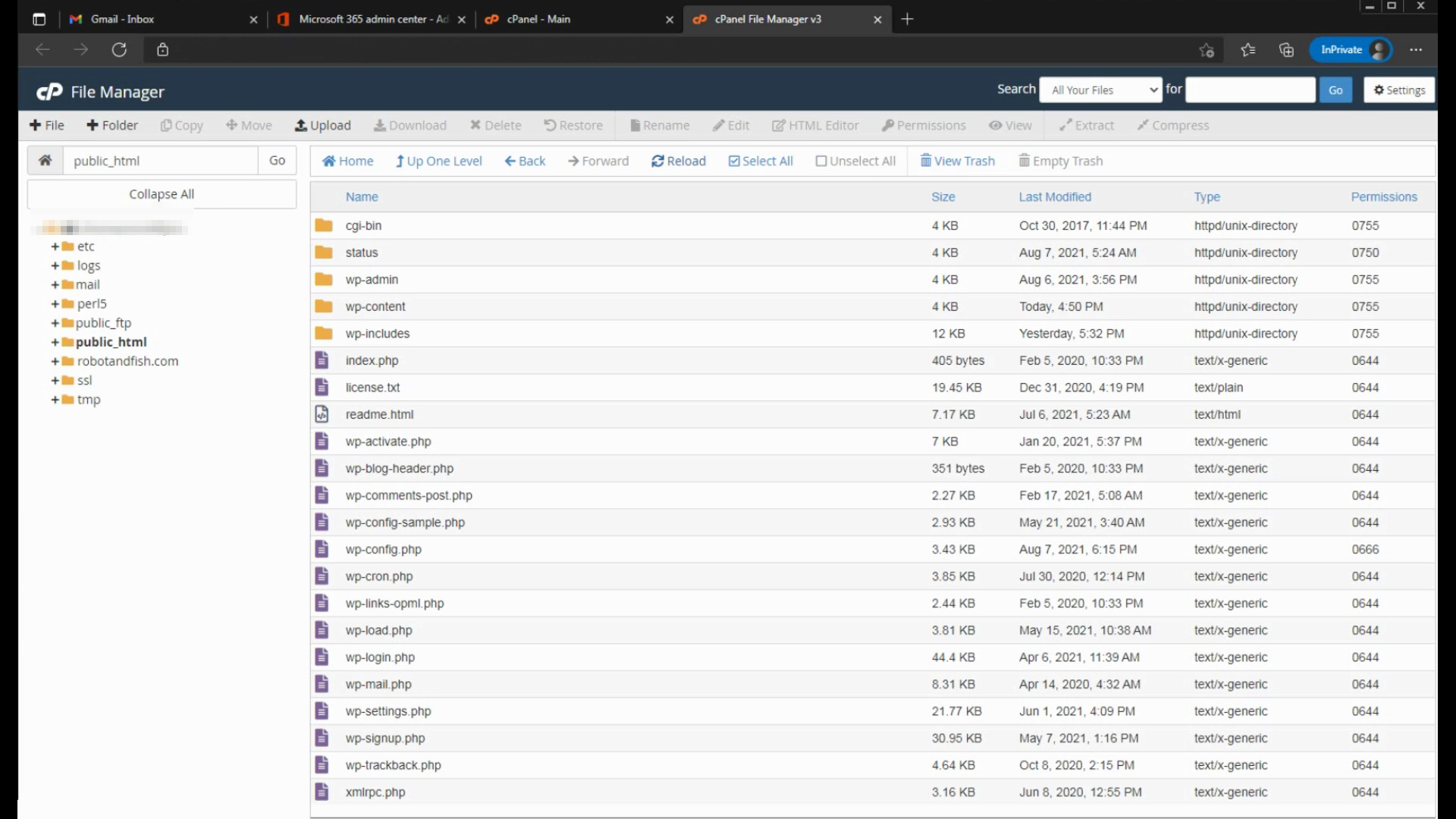
Using cPanel - File Manager, go to the public_html folder then on the top menu, click on Upload.
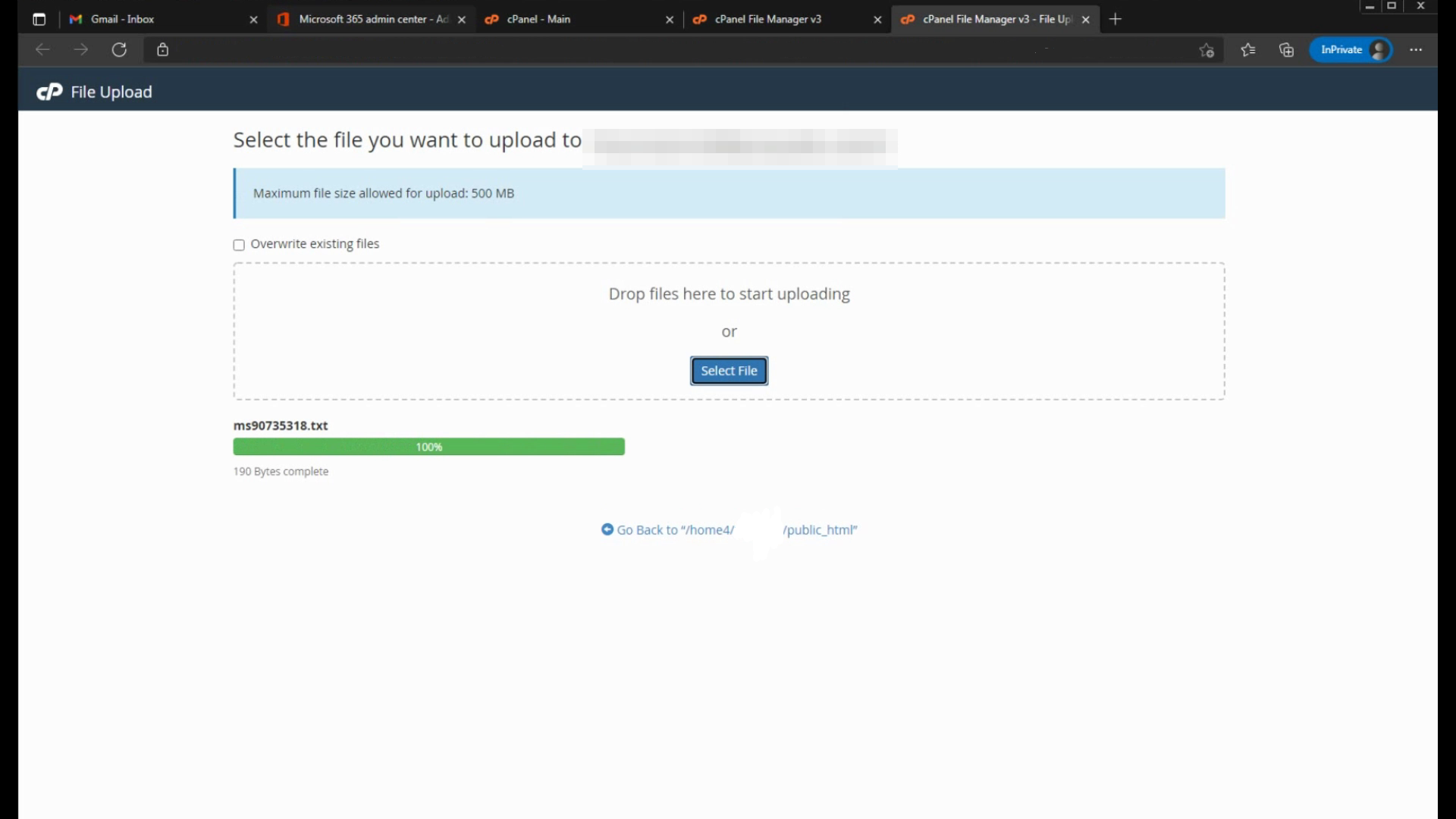
Here, you will drag and drop your file here.

Once, after you uploaded your file, make sure to test it. It should load the text file.
EXAMPLE:
example.com/12345.txt should load to the 12345.txt file.
Once it loads correctly, click on Verify. It should lead you to the next step to add your domain.
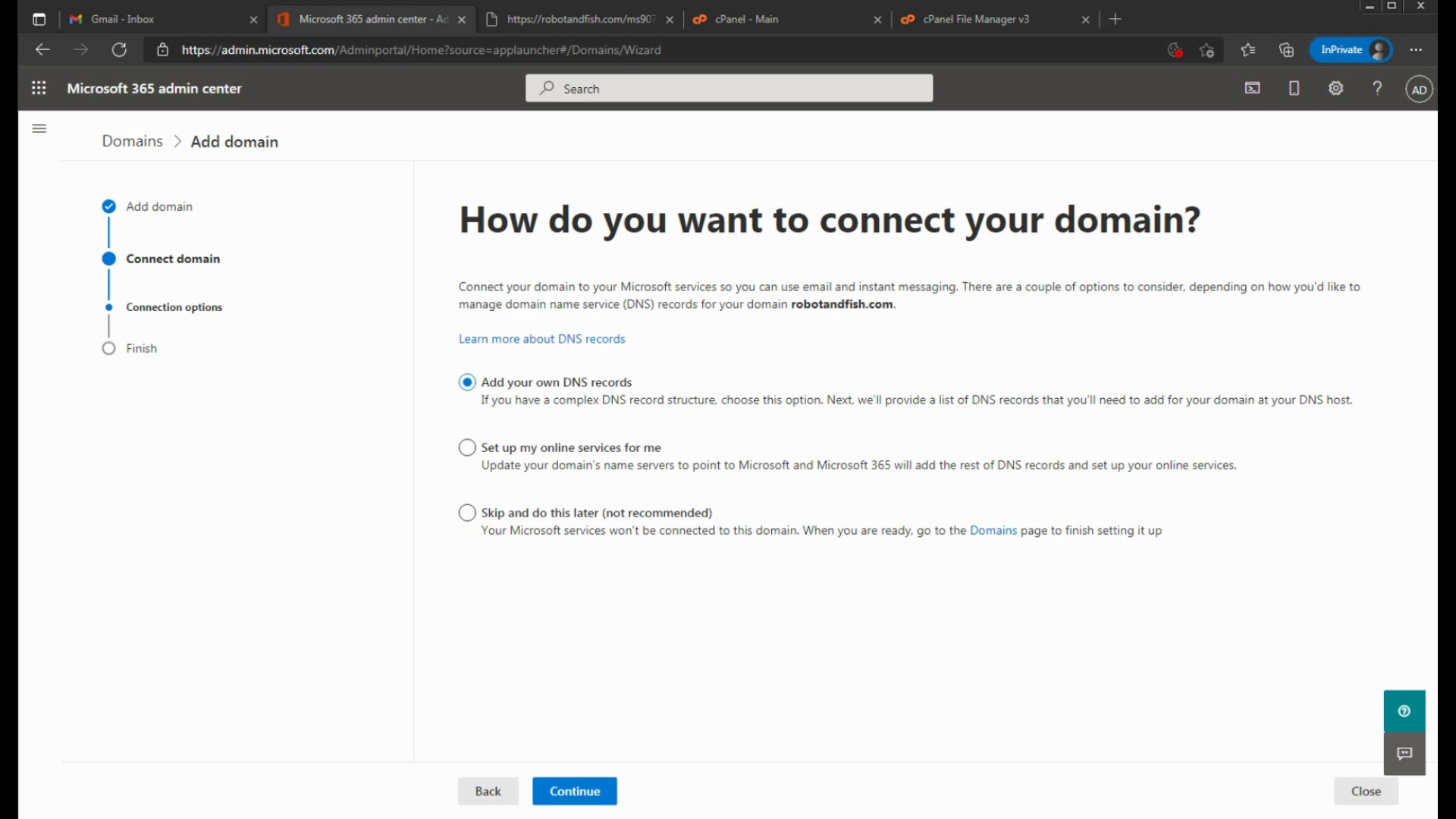
For now, I will just add the domain fully for later. In a future guide, I will show you how to add DNS records in these steps seen above.
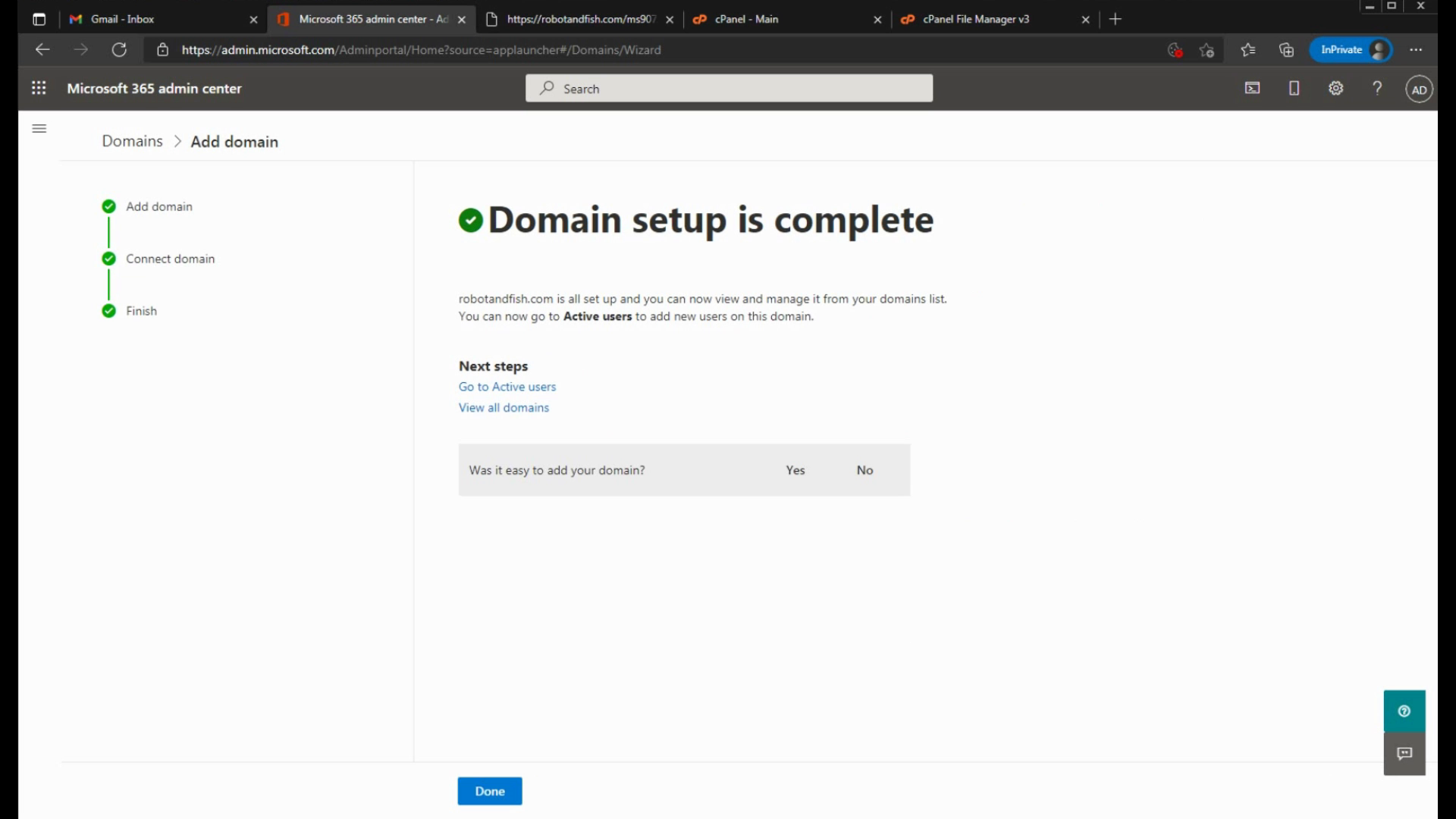
Your new domain is added into the dashboard. You can set it up later for Microsoft services.