Step 1: Download and Install WordPress
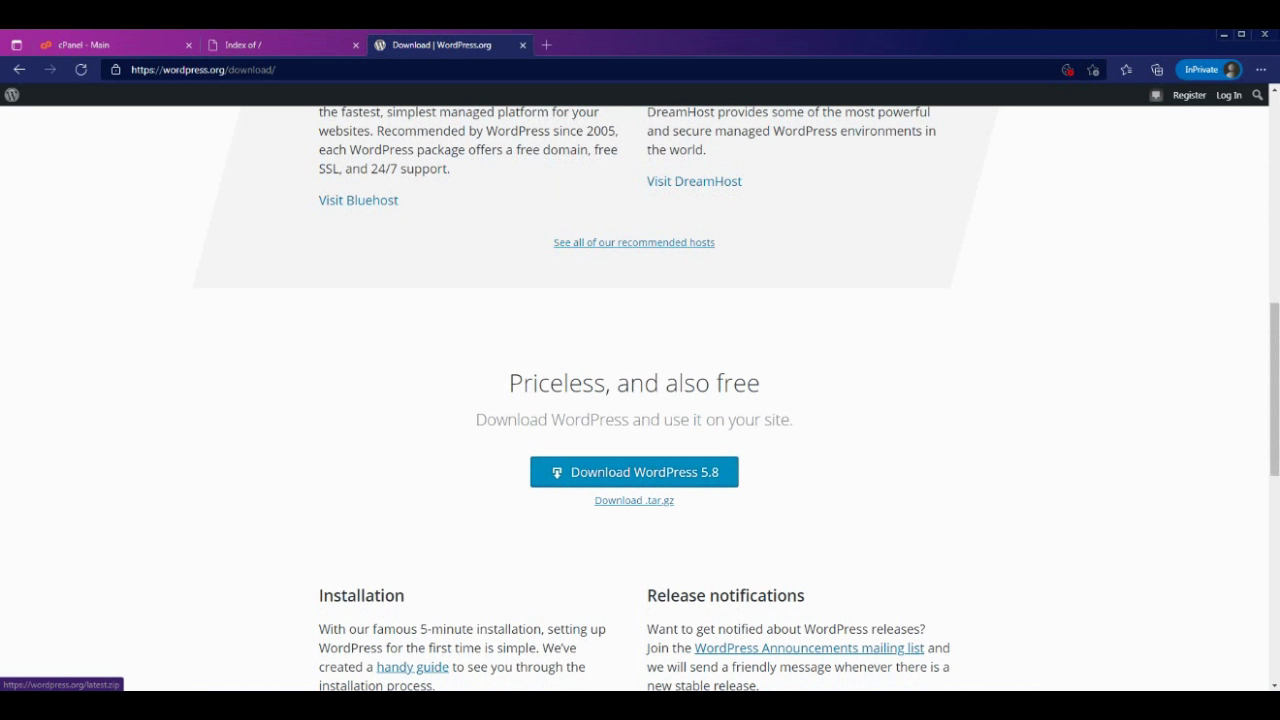
Go to WordPress.org and find Install WordPress to get the ZIP folder!
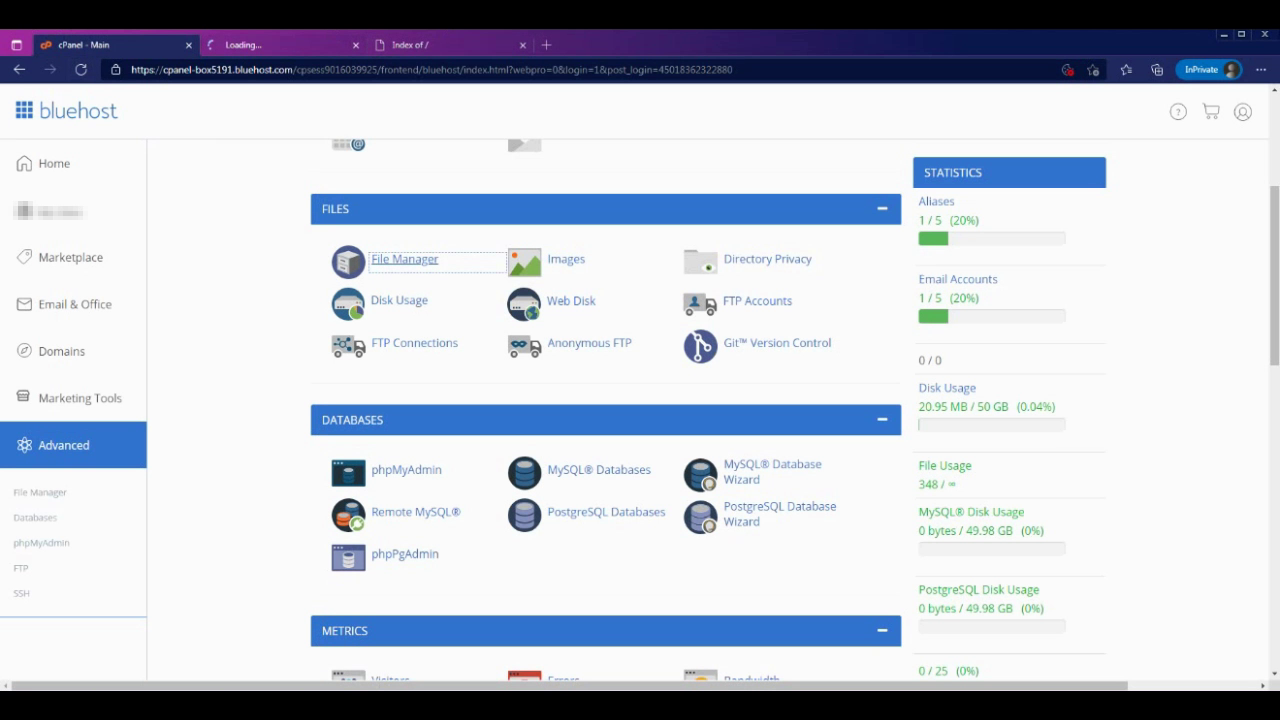
Go to your file manager in cPanel then navigate to the public_html folder. Then click upload.
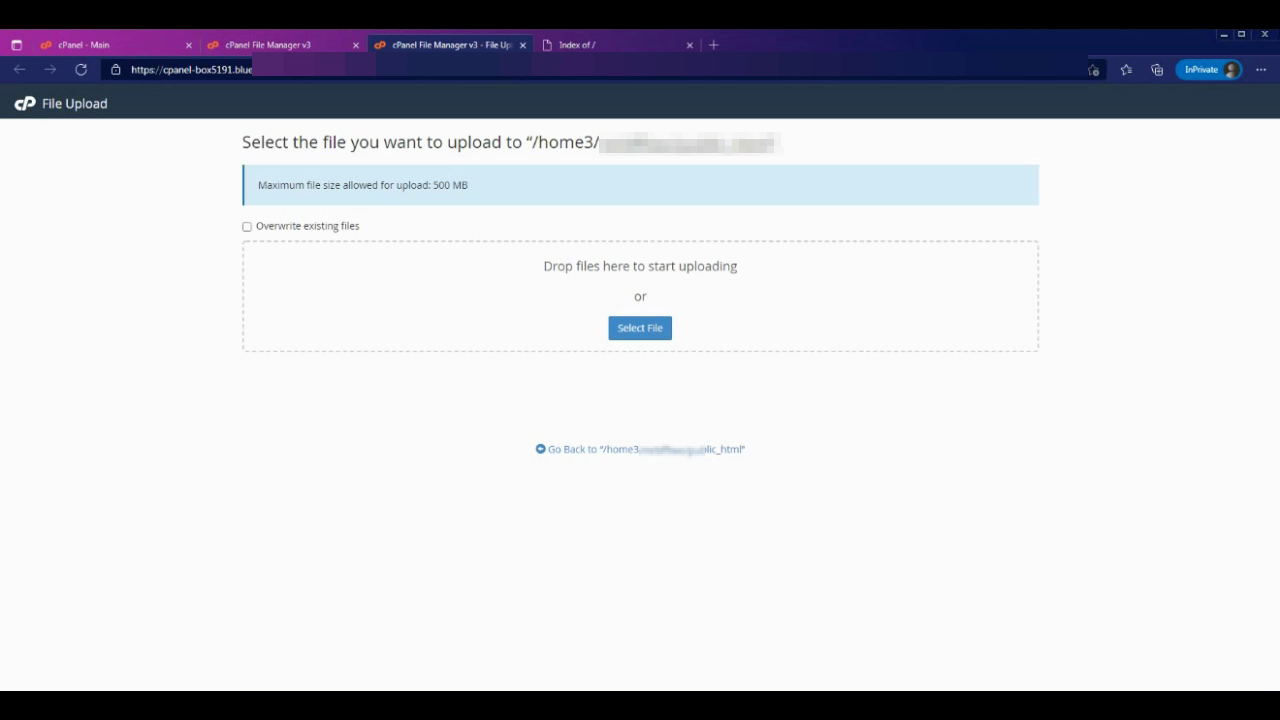
Upload your file here.
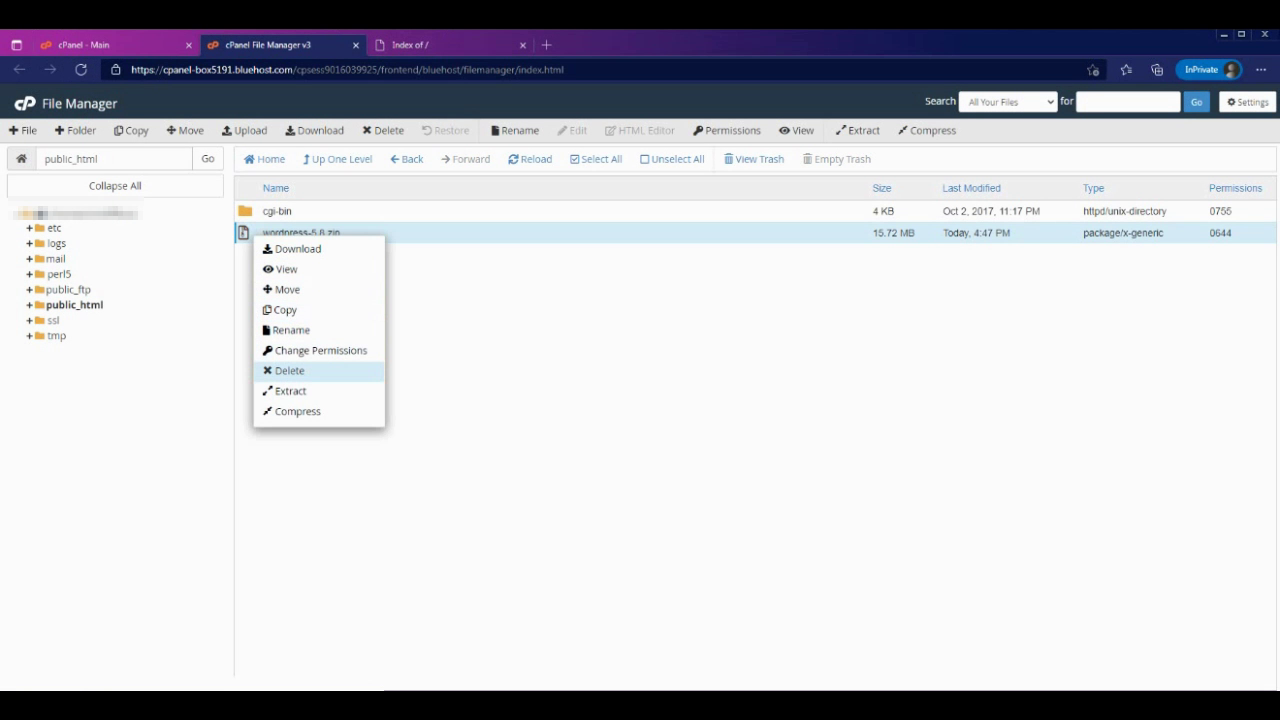
Once you uploaded the ZIP file, right click to extract the folder.
Go to the folder, Select all and move the files one level up in your public_html folder.
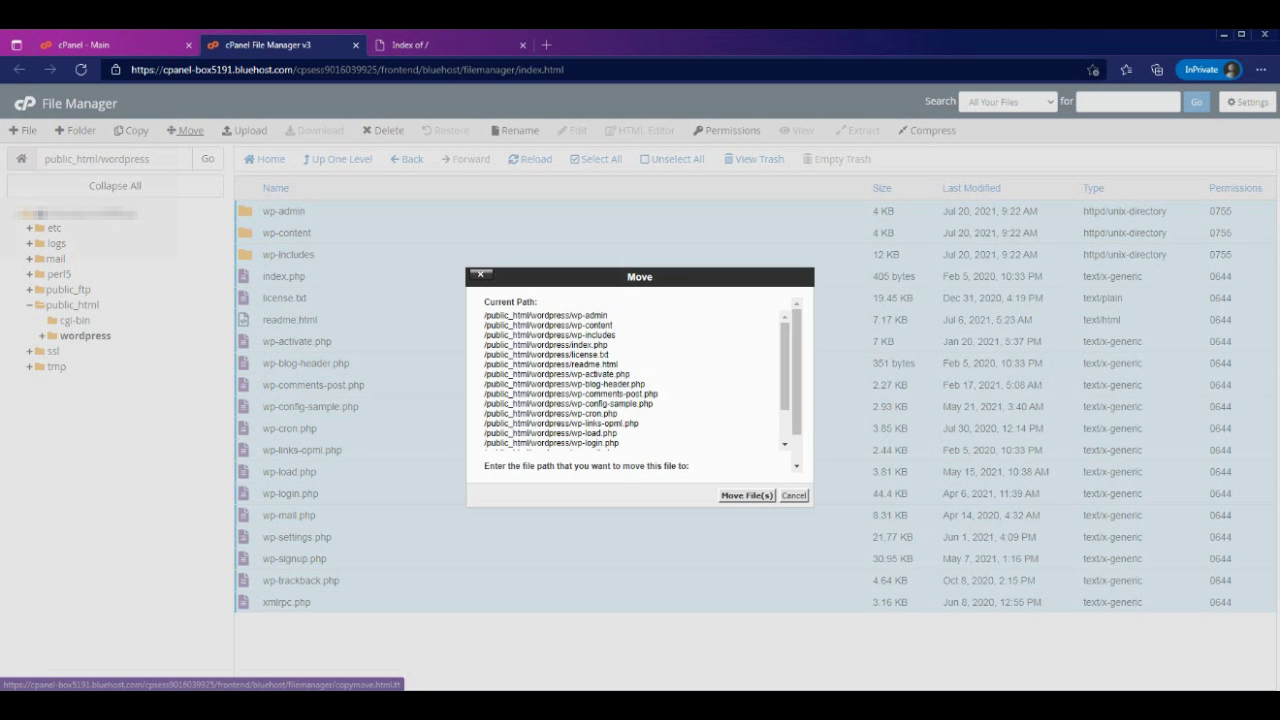
WordPress is now installed in the root.
Step 2: Set up your Database
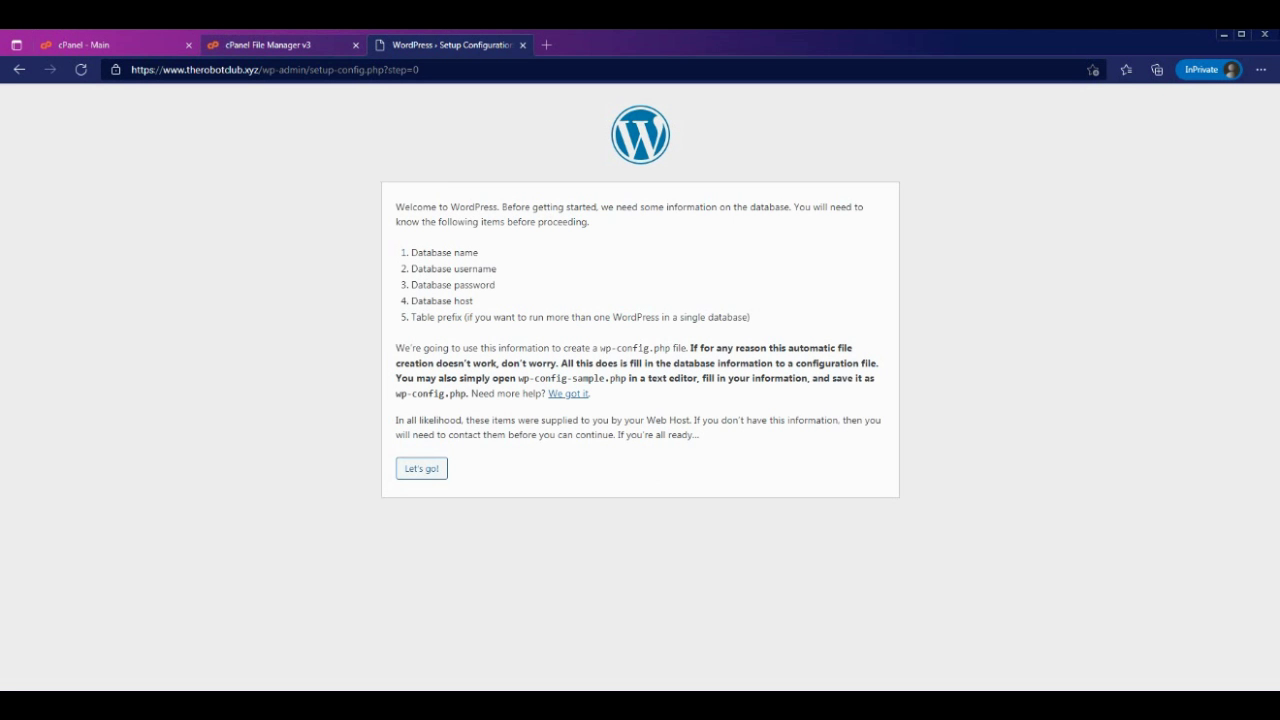
Go to the cPanel --- myPHP Databases menu.
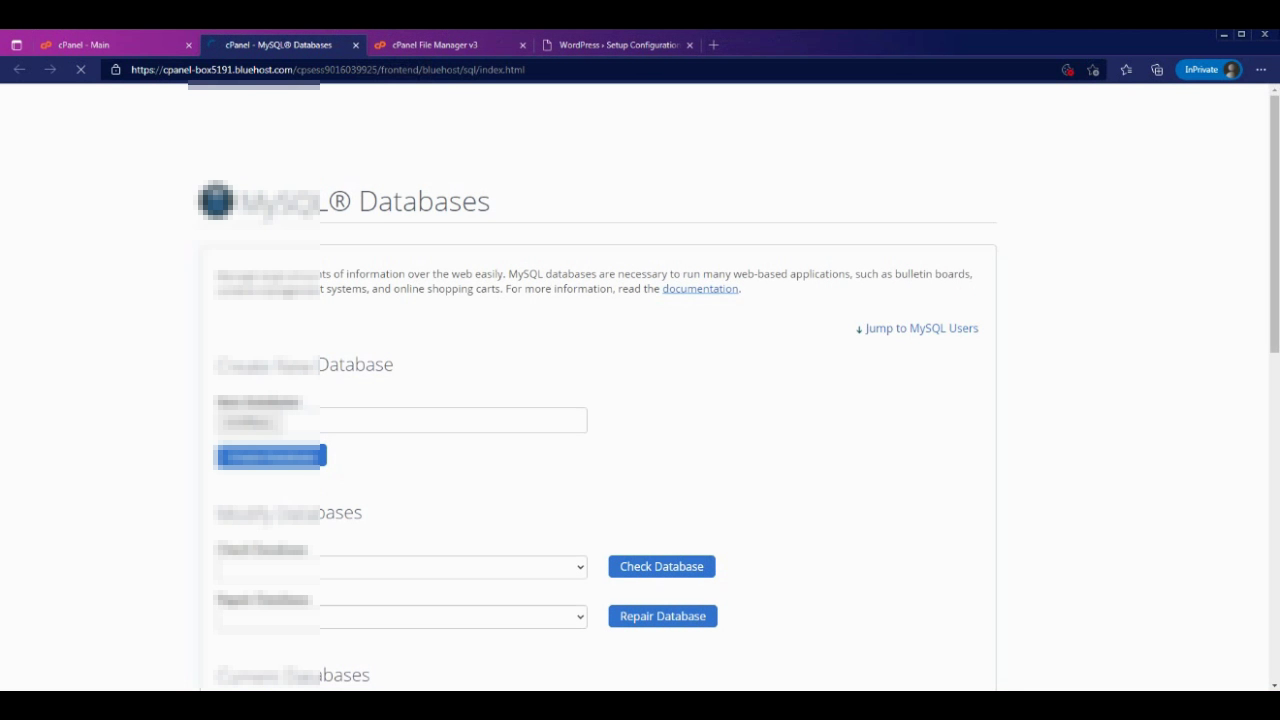
Create a new Database for your profile. Then Click on Create Database.
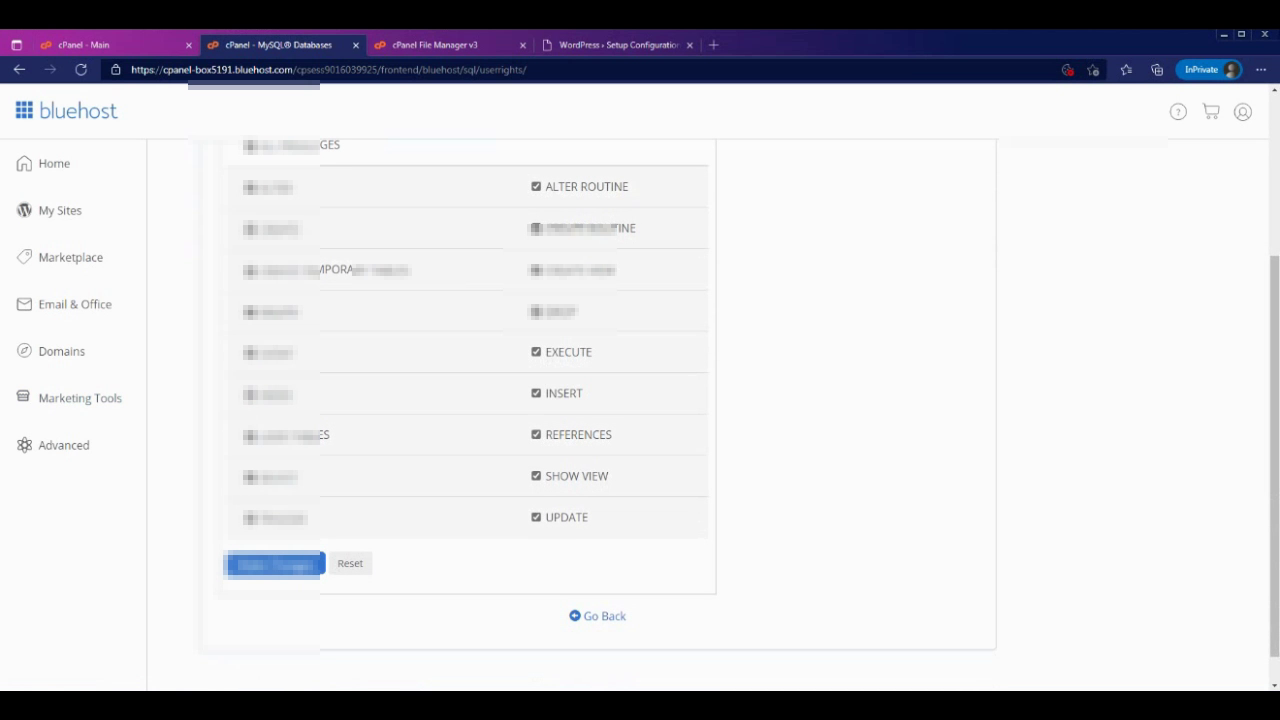
Then create a new Database username and link it! We gave our user all of the perms. Make sure to note the password!
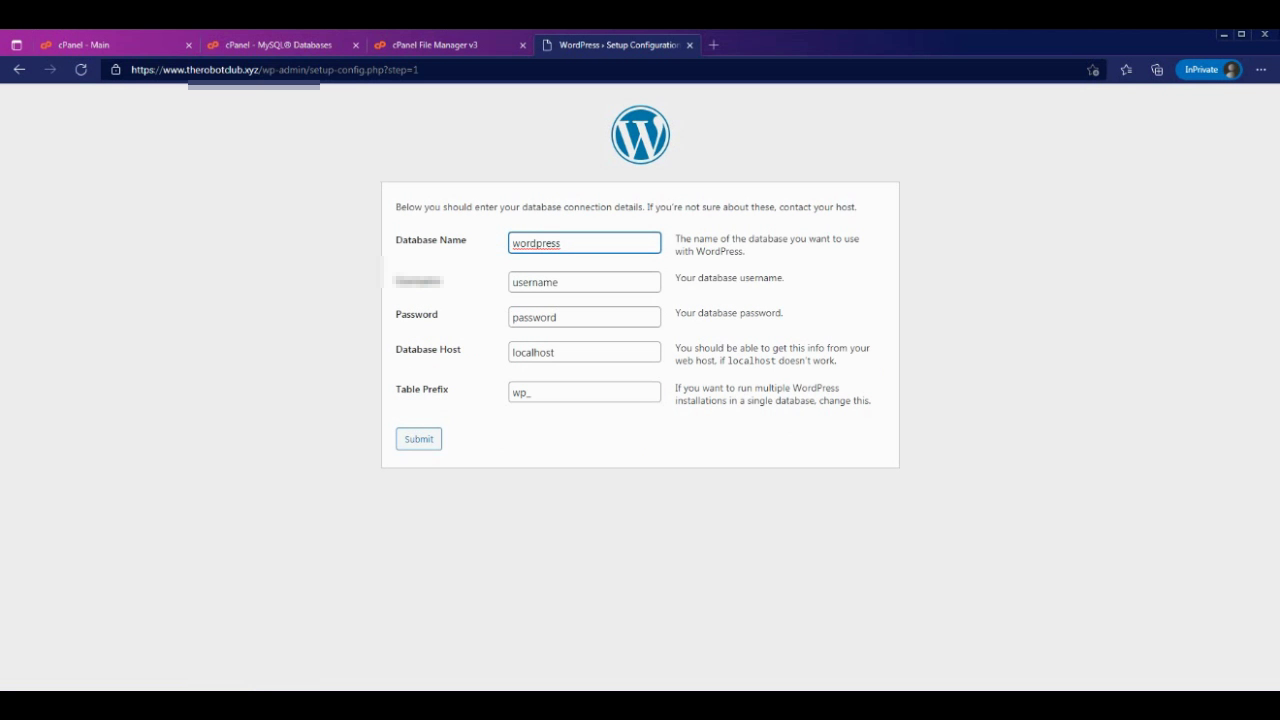
Add all of the information into the WordPress installer, database name, password and user.....
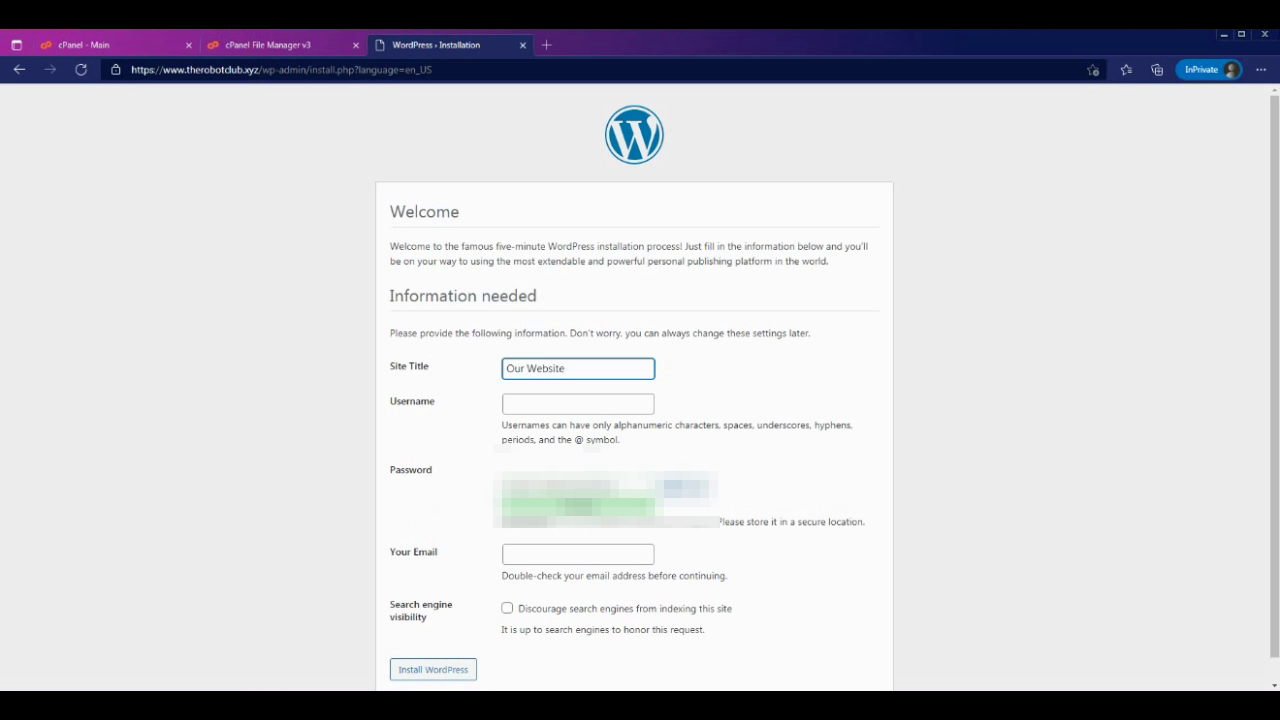
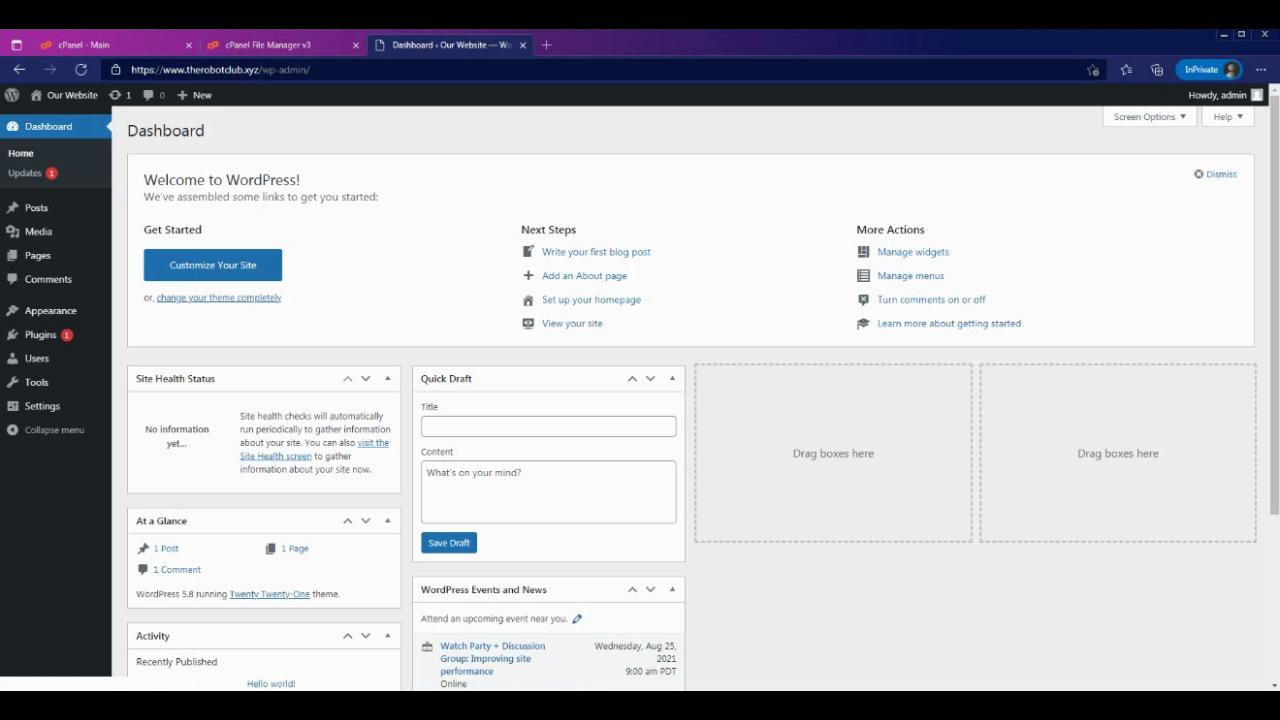
Once you have clicked to move on, it will ask you to create your site's name, password and user name to go into the dashboard.
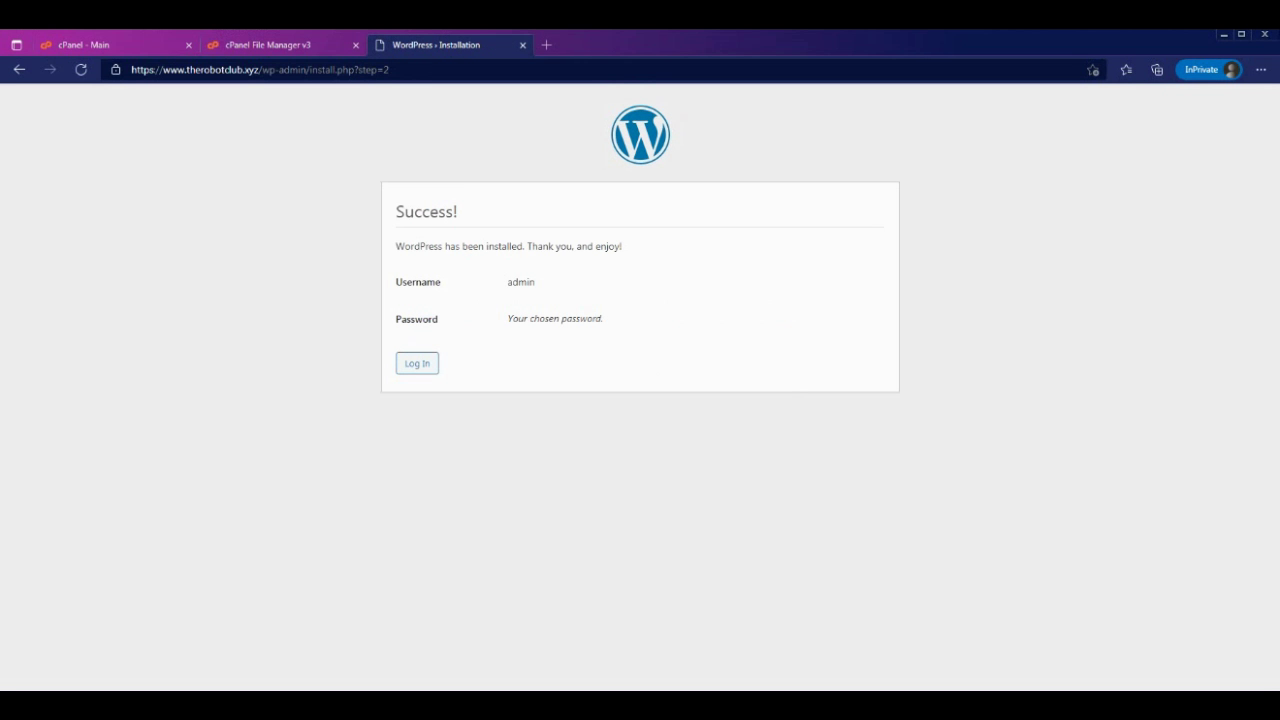
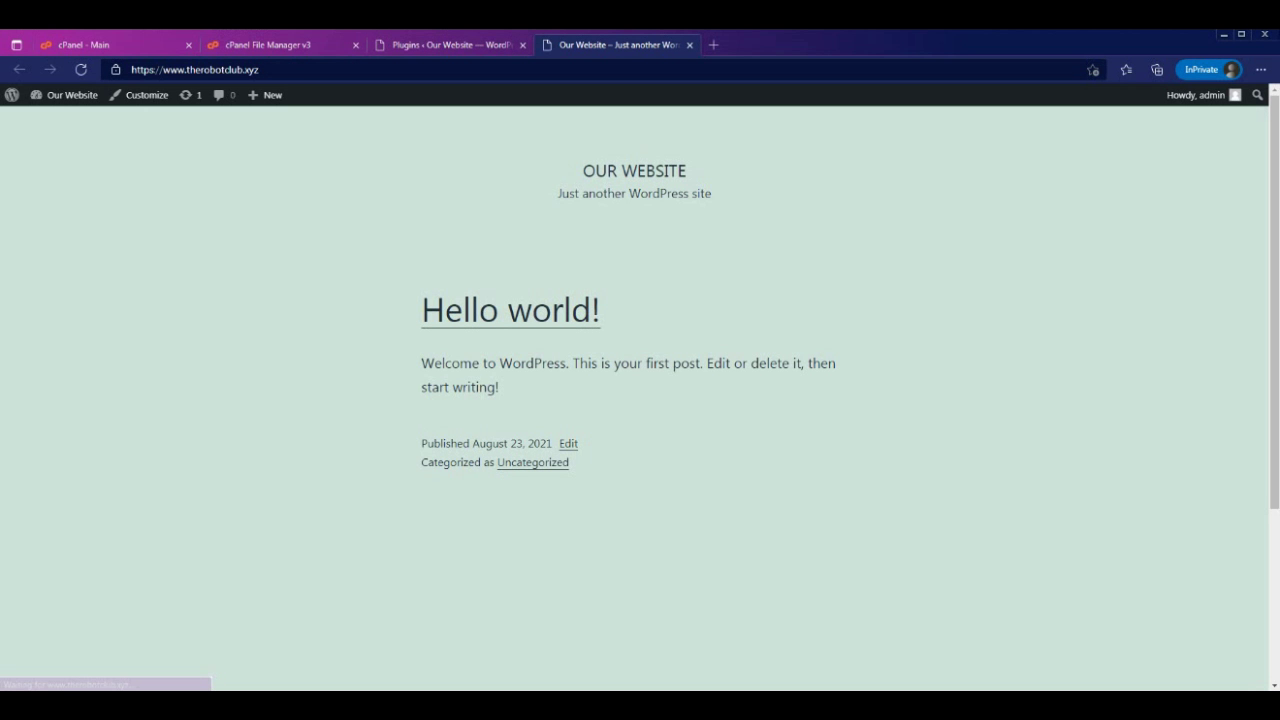
And then you have installed WordPress, enjoy your new site!
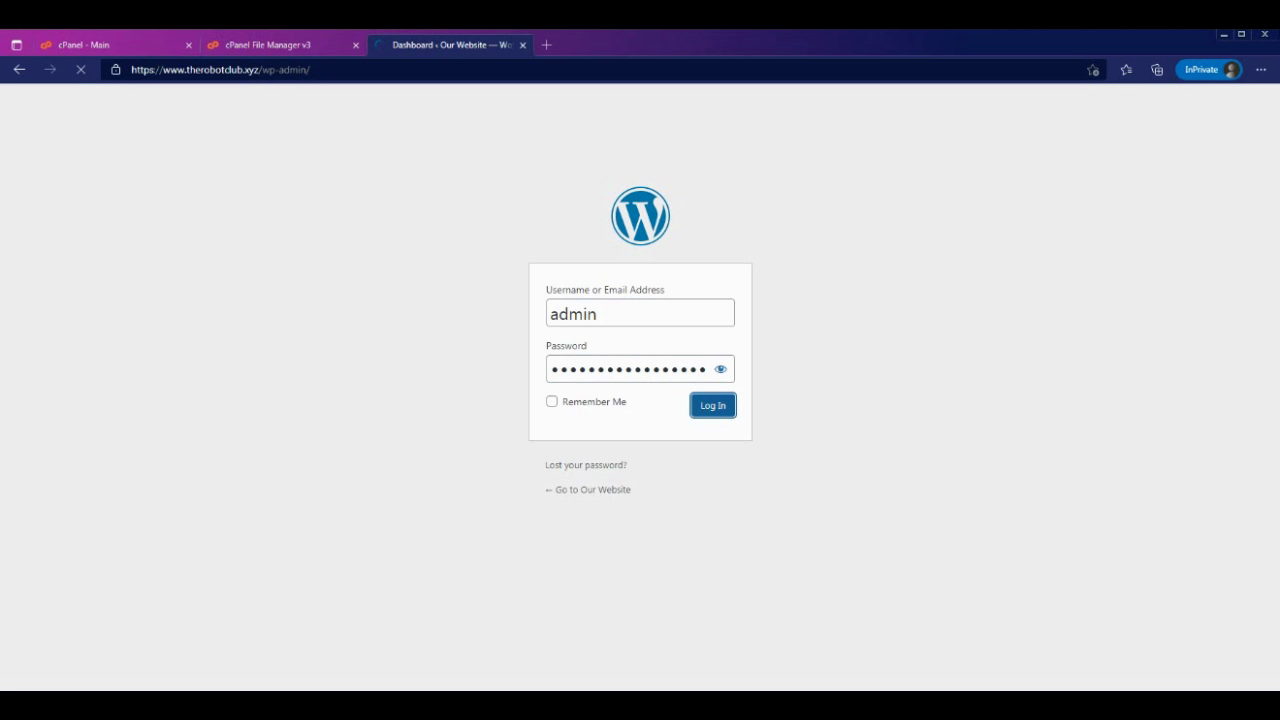
Login in to see your new site.