Step 1: Preparing the Drive:
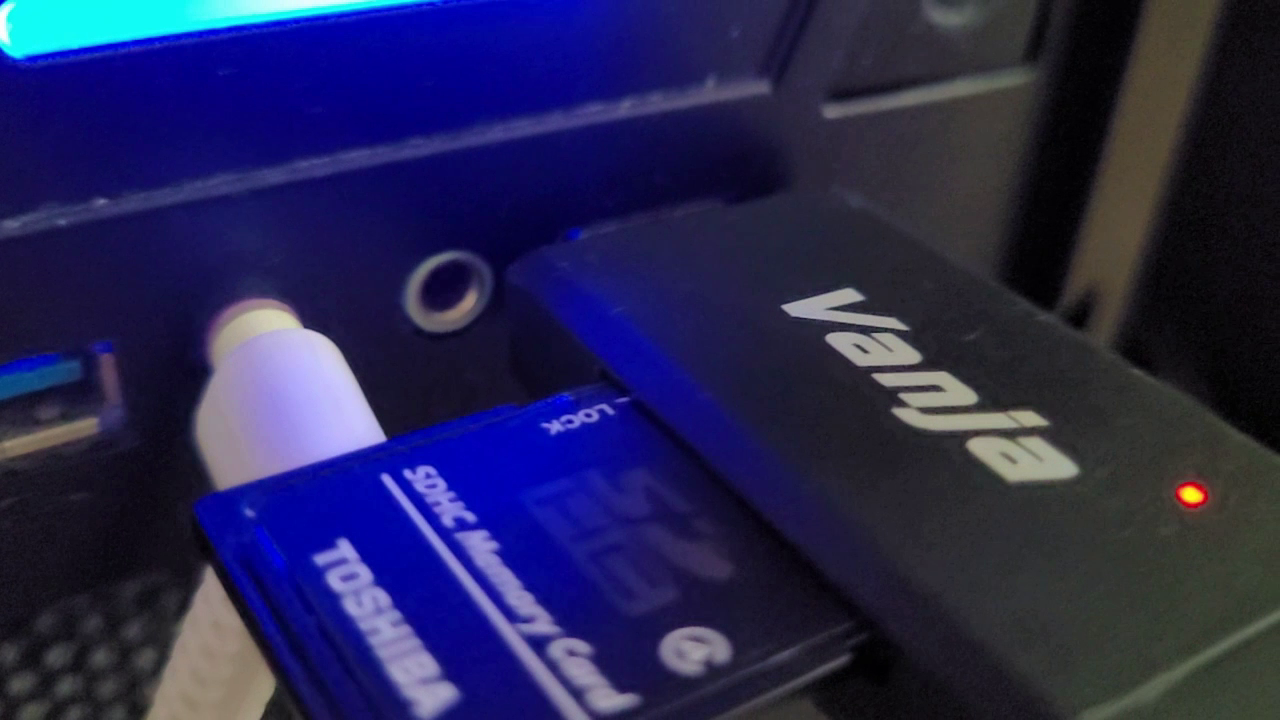
Insert your USB Drive on your computer and format it to FAT32. Drag any important files before continuing.
This was tested for the FLUID COMPACT DVD PLAYER: Manual
This tutorial might not work for the HDMI version of the Fluid DVD player, please consult the manual if it's supported.
You'll need these tools:
Step 1: Preparing the Drive:
Insert your USB Drive on your computer and format it to FAT32. Drag any important files before continuing.
Step 2: Getting the Video Ready:
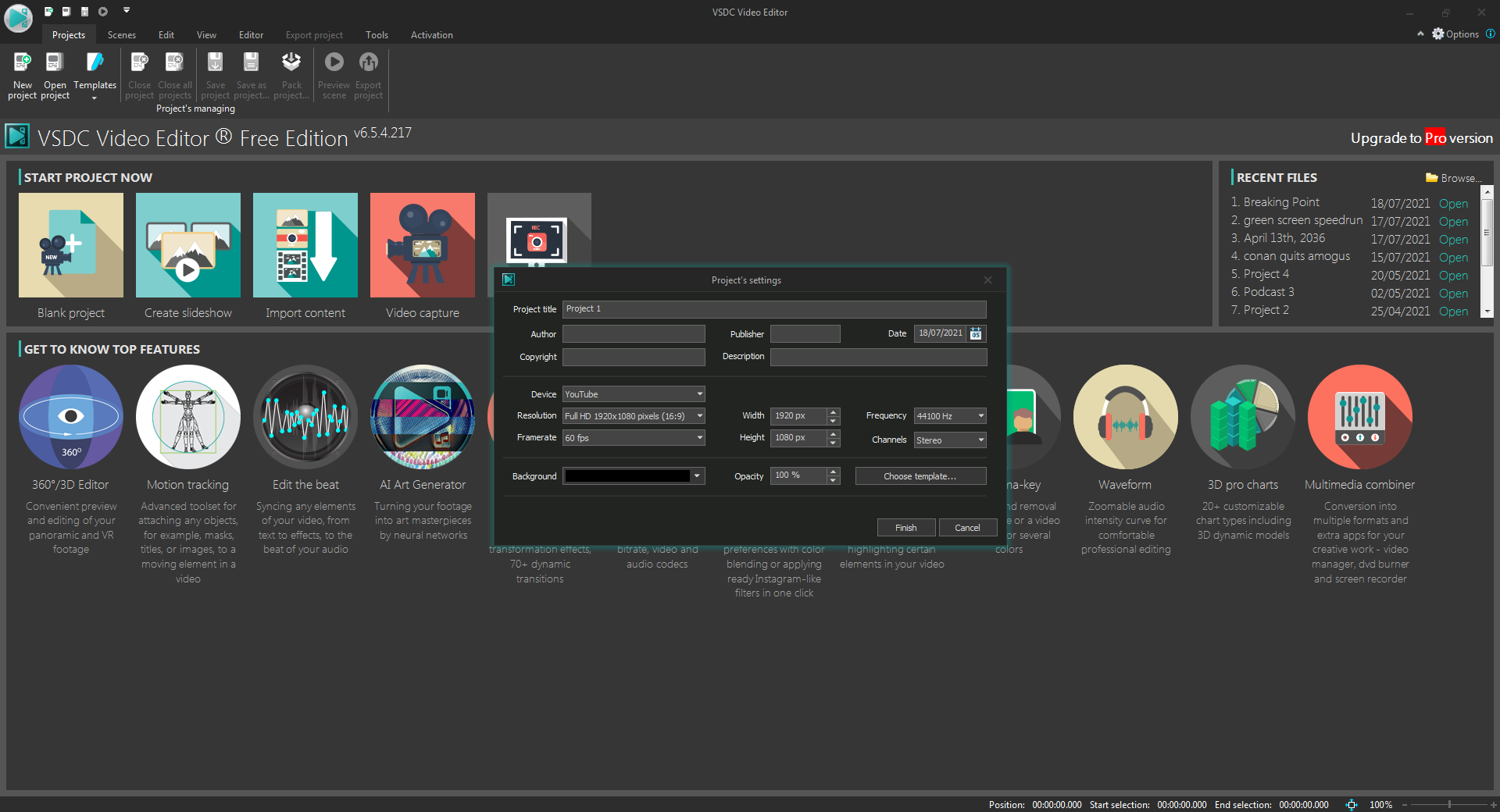
Using VSDC, set up a new project. Hover to the new project button then give your video some details if you like.
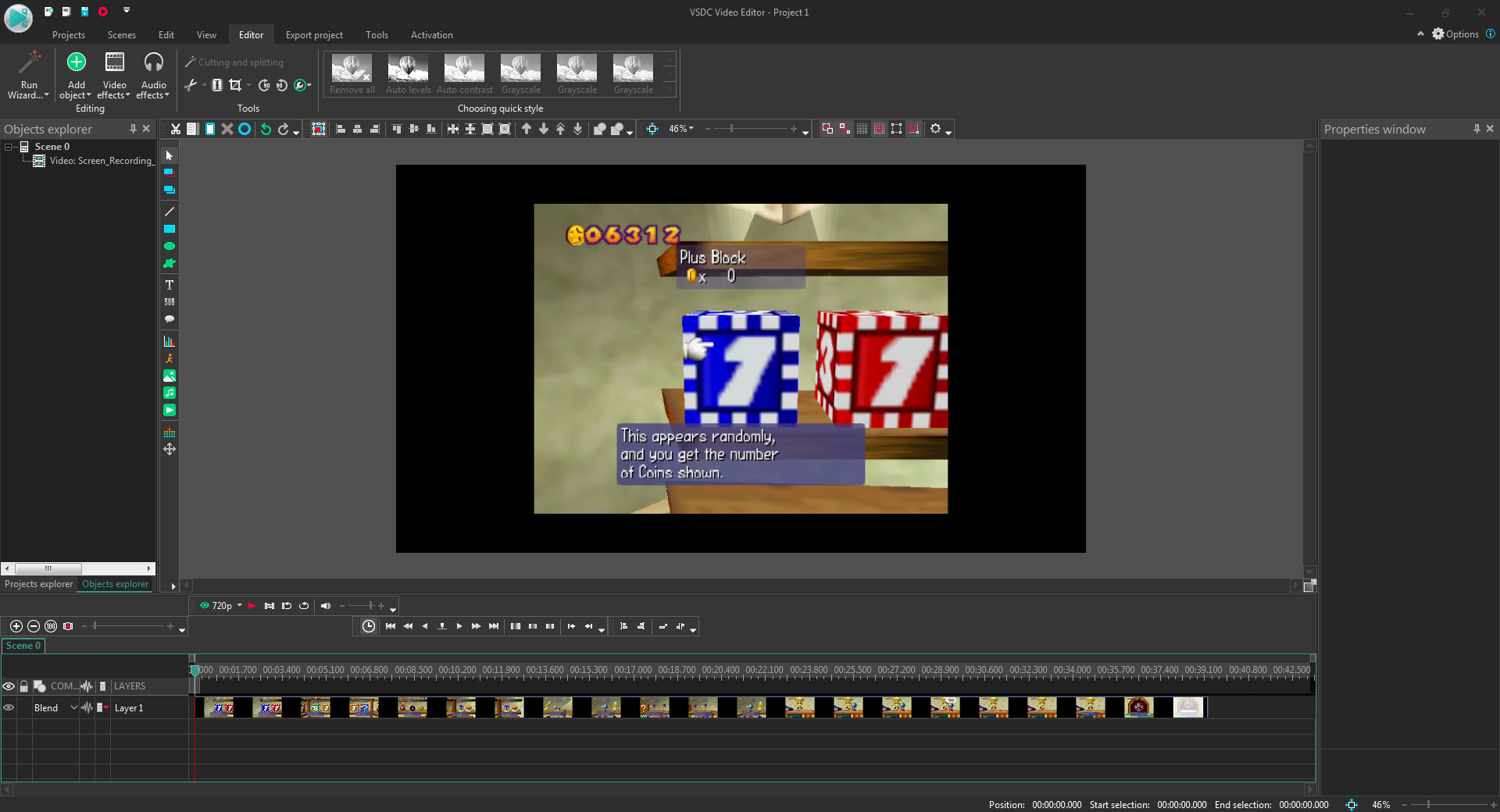
Upon entering the editor, Drag your video into the layer as seen here. You are free to edit the rest of your components.
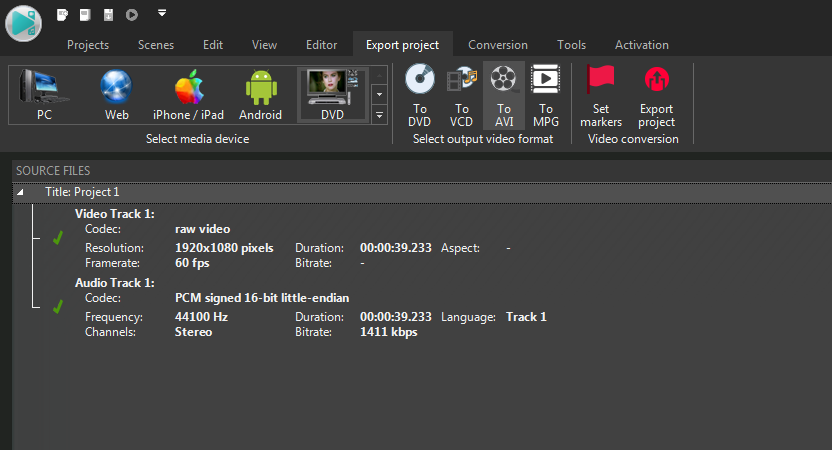
Once your finished, hover to Export Project tab then change the setting to DVD then .AVI as seen above.
Step 3: The Crucial Part:
Using the Quality Dropdown, double click on the Output Quality details to find a Menu.
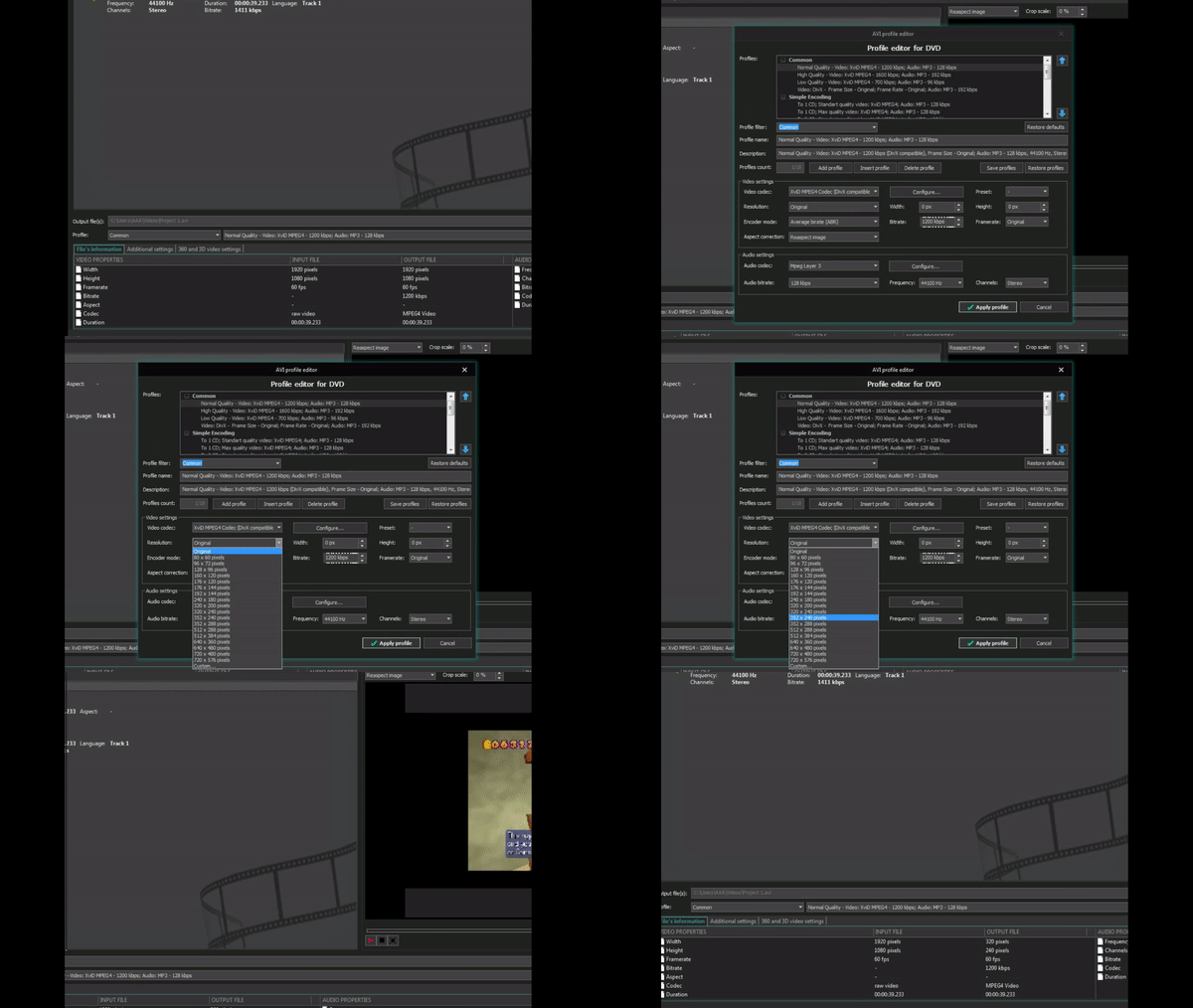
Locate to the Resolution box and choose a quality of your choice.
NOTE: if you choose a quality that is 720p and above, your video will show a black screen.
We recommend you choose a quality that's 480p and lower to show picture on your Fluid DVD player.
Once you chosen your desired quality, Export your Project and save the file into the Root of your USB drive!
Step 4: Testing
Insert your USB drive into your DVD player and navigate to the video file you created.
If picture shows up: You are set to go!
If a picture does not show up: Troubleshoot:
Check your steps or refer to the video. You are free to comment on my YouTube video and I'll try to get back to you.
If your have problems with your Fluid DVD Player, contact the manufacturer for help.