Interactive video
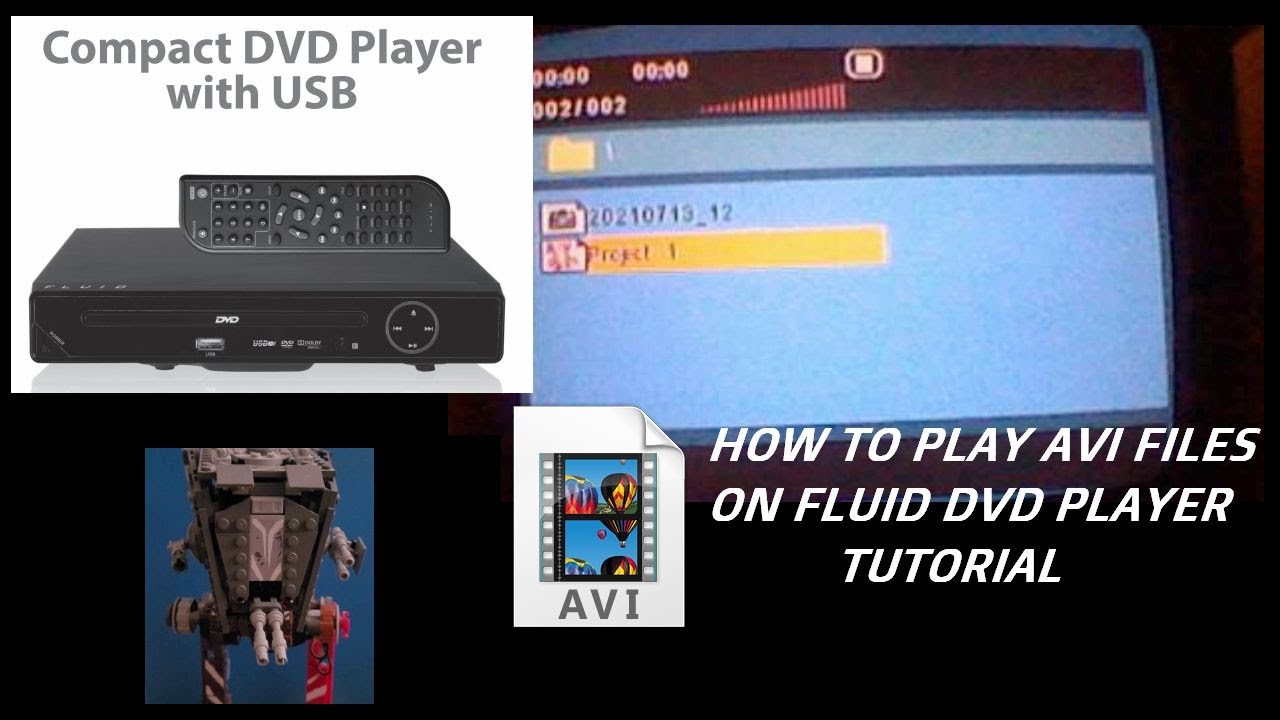
This was tested for the FLUID COMPACT DVD PLAYER: Manual
This tutorial might not work for the HDMI version of the Fluid DVD player, please consult the manual if it's supported.
You'll need these tools:
Step 1: Locate the Password Option:
Press Settings on your Fluid DVD player. Go to preferences, the option is not accessable if Media is on Play.
Locate to Password then click Change Password.
Step 2: Change your Password:
Click on this Drop-down box to see the Master Code.
Click here!
Enter that code or your current code if you have one. If you forgot it then the Master Code is your only bet.
Create a new password and re-enter it then you are all set. You can turn off Password Mode or change settings for your Fluid DVD player.
Refer to the attached Manual for more assistance.
Step 3: Testing
Load a DISC and test if the Password Dialog shows up or not
If a password dialog shows up: You must enter the password to get in.
If a password dialog does not show up: You are set to go depending of your Disc. If not, then your good to go.
Troubleshoot if.....
Check your steps or refer to the video. You are free to comment on my YouTube video and I'll try to get back to you.
If your have problems with your Fluid DVD Player, contact the manufacturer for help.