Interactive:
Interactive:
A free service and method to have emails sent to you and send emails to the right name! This might not be a reliable method for all users but it's real easy to setup.
We used this service here: Email Forwarder
This tutorial might not work in the near future, instead their service will provide a SMTP plan if changed as an alternative.
You'll need these tools:
Step 1: Setup a new account (optional if you need a clean inbox)
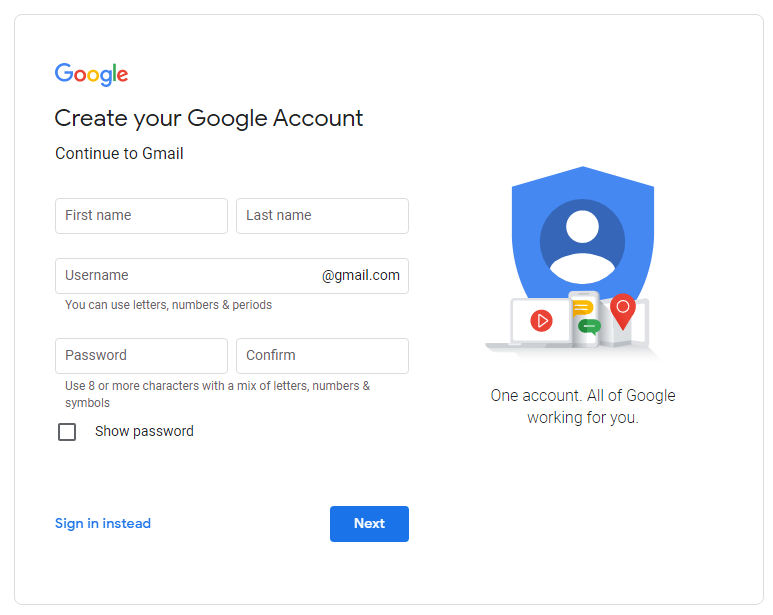
For this, we'll use Gmail. Sign up for an account.
After you made an account, note down the email you created.
Step 2: Setting up your Domain for Emails:
Using this service, enter in your Domain then the Email you would like to forward it to. Click the image for a Zoom In.
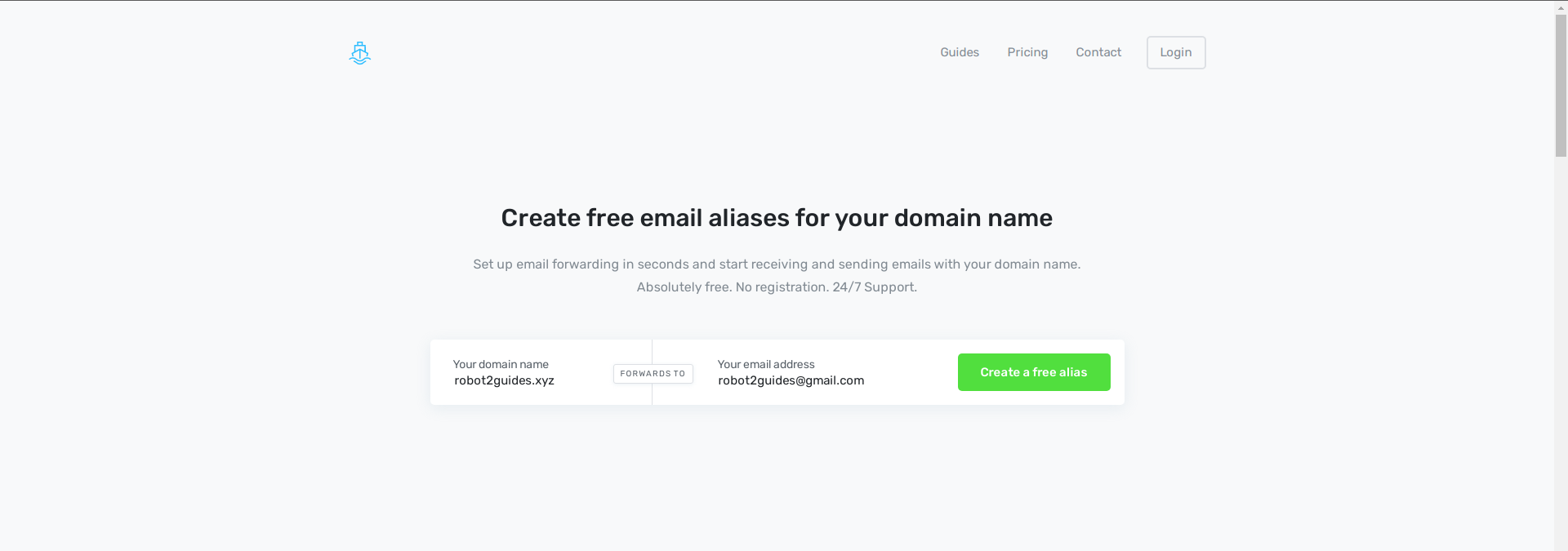
Then this menu will show up, add 3 records into your DNS server. 2 MX - 1 TXT
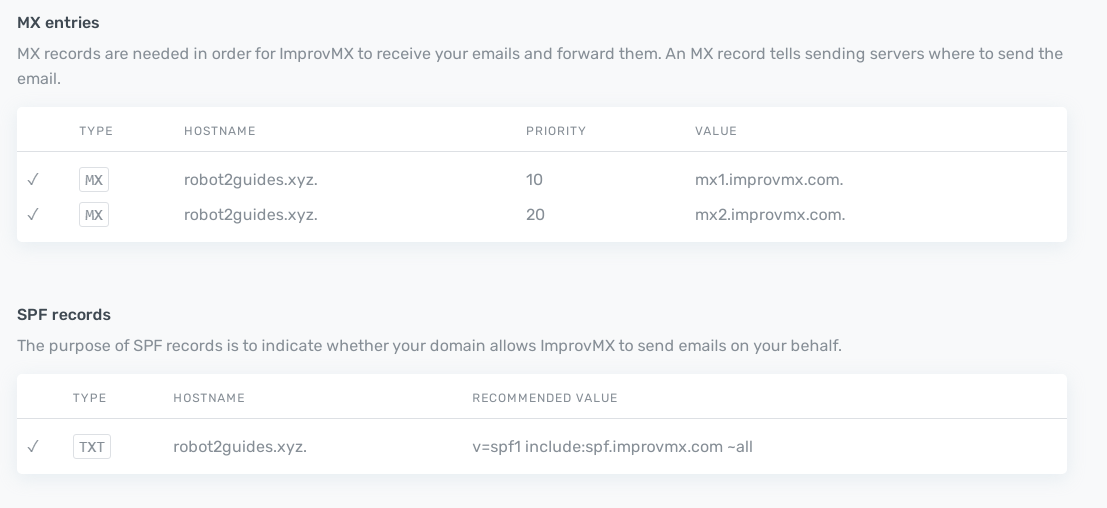
We used Cloudflare for our DNS service. Make sure to follow the instructions and paste carefully into your DNS records!
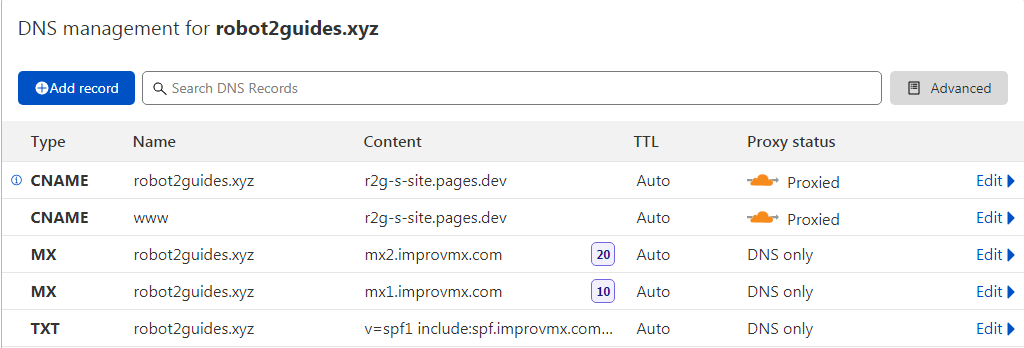
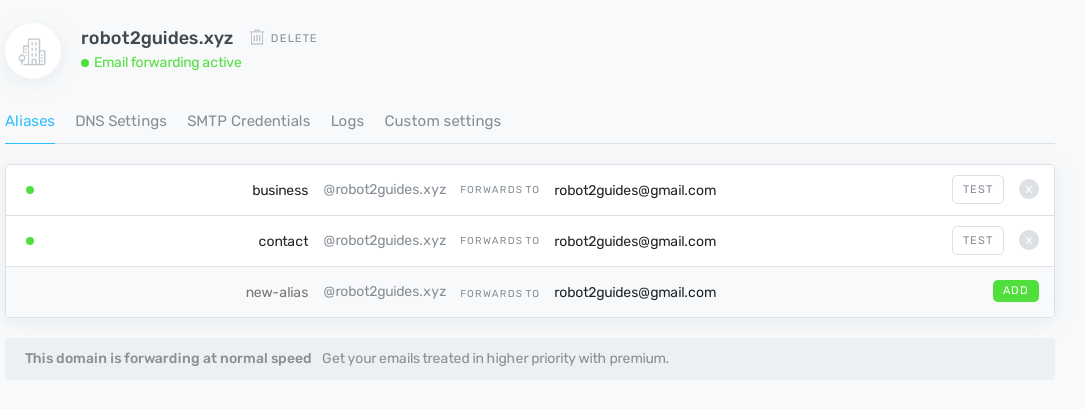
Head back to this page and click, Check Again. Your records should be validated and show Email Forwarding Active.
DNS changes may take 24-48 hours to propagate.
Make sure to set Aliases for your email and give them a Test to ensure it works!
Step 3: Set up 2FA and App Password
Set up 2FA for your Google Account. You most likely need a phone for your set-up.
Once you have 2FA on, head to App Password. We need to make this for our Email.
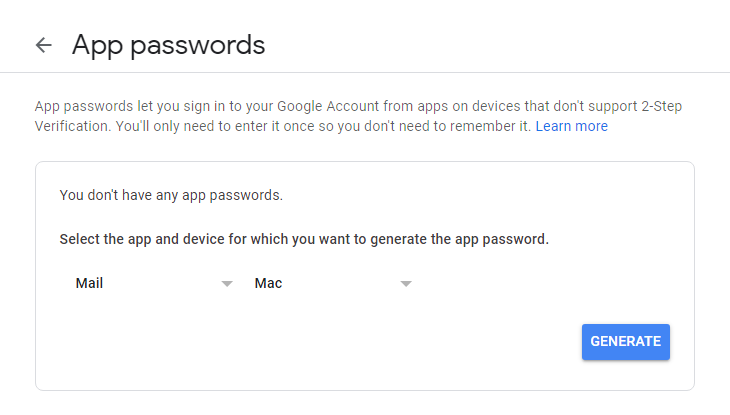
Make sure to toggle - Mail for Mac.
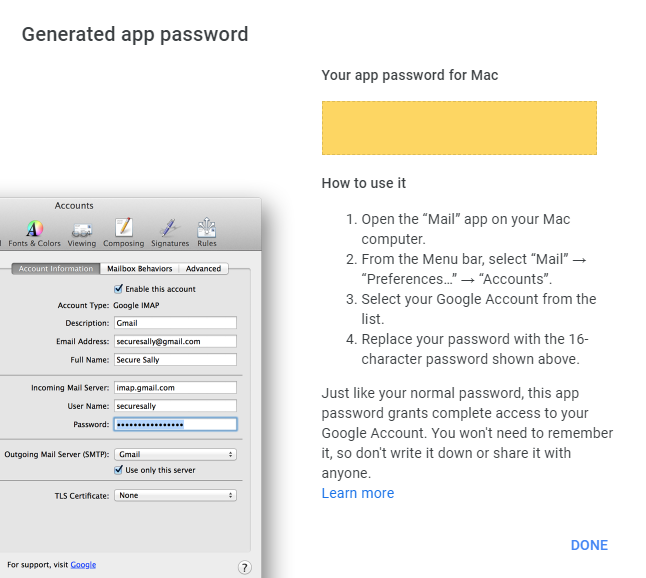
An app password will be generated.
Step 4: Set the status of Send Mail As:
Go to your Gmail account and go to Settings - Accounts and Import.
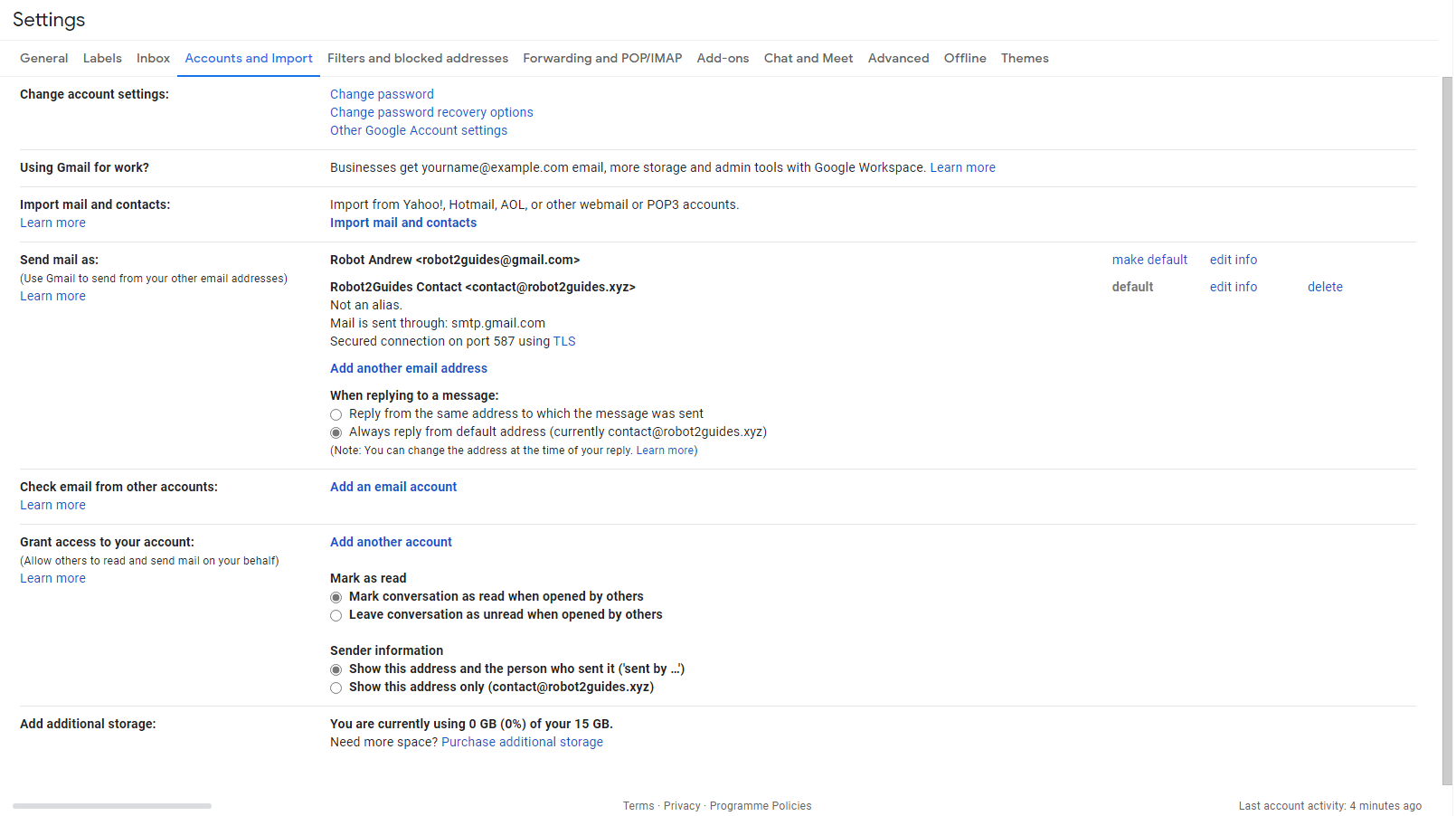
Locate Send Mail As and then Add Email Address
A dialog will show up. Enter in a Unique Name for your Address and then enter the Email of your Domain you would like to add. Uncheck the Alias Box.
Next: Enter in the SMTP: smtp.gmail.com then your Gmail address then Enter the password we've created from the App Password. The other settings are fine.
Once it's validated, you will receive a verification email on your Gmail. Enter in the code or click the link. The new address should now be added.
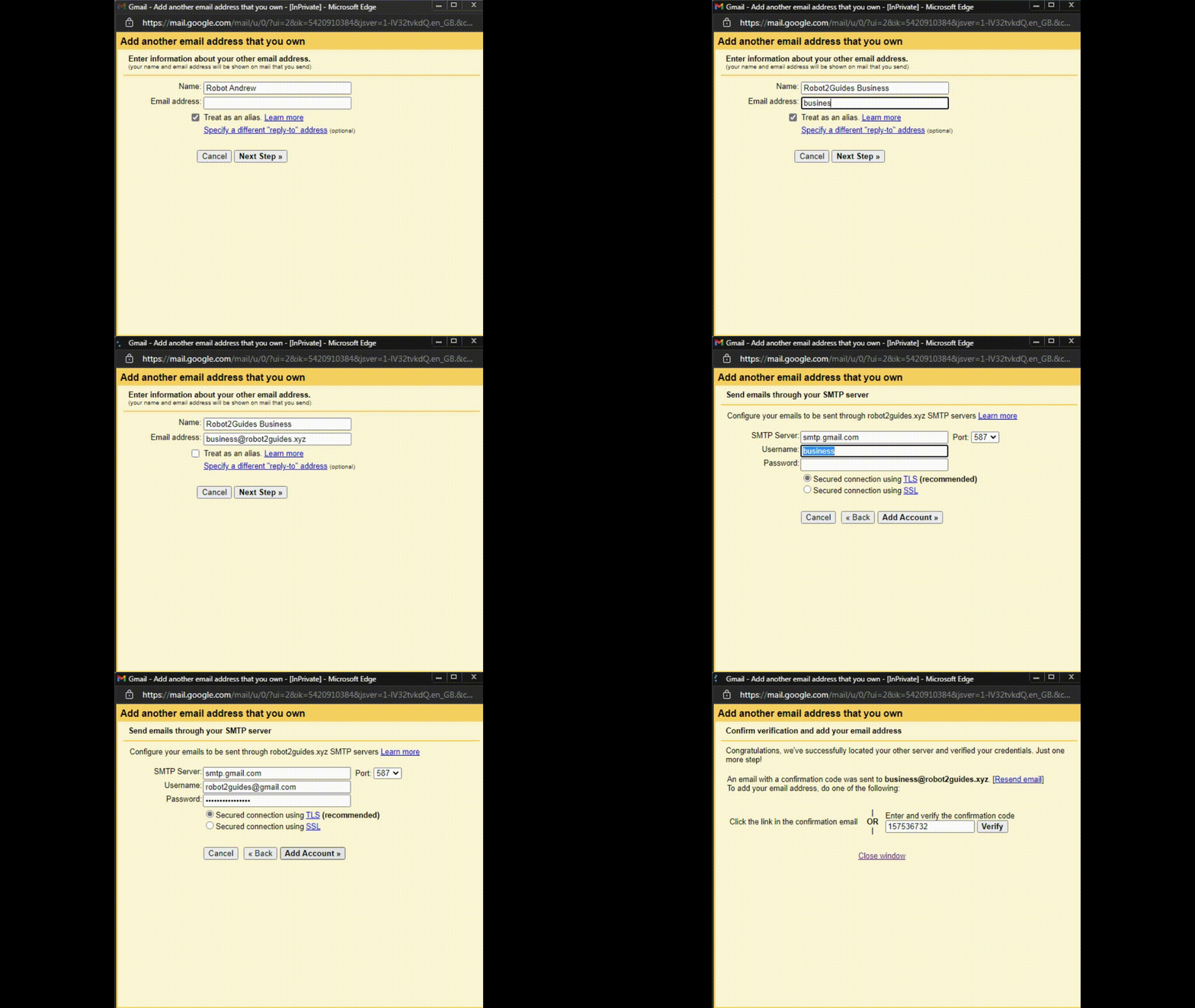
Don't forget to set your address when making Emails or make it a Default!
Step 5: Testing
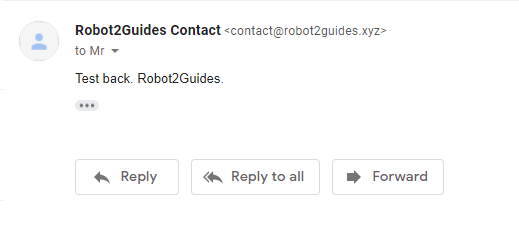
Send a draft email using your new Email Address setting.
Verify if your Email and Name shows up.
If it does not show up: Troubleshoot:
Check your steps to verify your setup. You are free to contact me and I'll try to get back to you.
If you have additional problems, contact the service for help.